
This article describes the configuration steps required to connect your Carousel Platinum account to your Microsoft Entra account, to take advantage of Single Sign-On within your organisation.
Sign-On can be activated for Carousel Platinum accounts with MIS integration.
Wonde Permissions
- To enable SSO for students (as well as teachers), you first need to approve the 'student email' scope via Wonde. To do this, someone with Admin permissions for the school's Wonde portal will need to visit to the 'Permissions' section, toggle on the optional 'Student > Students contact details read > Students email read' permission and confirm/save the updated permissions.
- For SSO to work for students, student emails must be stored in your MIS against each student, and these emails must match the ones they use for SSO.
Single Sign-On with Microsoft
- In order to configure the Carousel app for your organisation, you will need to have the "Global Administrator" role in your Microsoft Azure account. If you are not a Microsoft administrator in your organisation, please forward these instructions to an administrator so that they can continue.
-
For teachers to use Single Sign-On the email address in Microsoft Entra ID and the school's MIS must match. The MIS email will sync to Carousel and allow verification of their Microsoft credentials.
Configuration
1. Access the Carousel Azure app via this link.
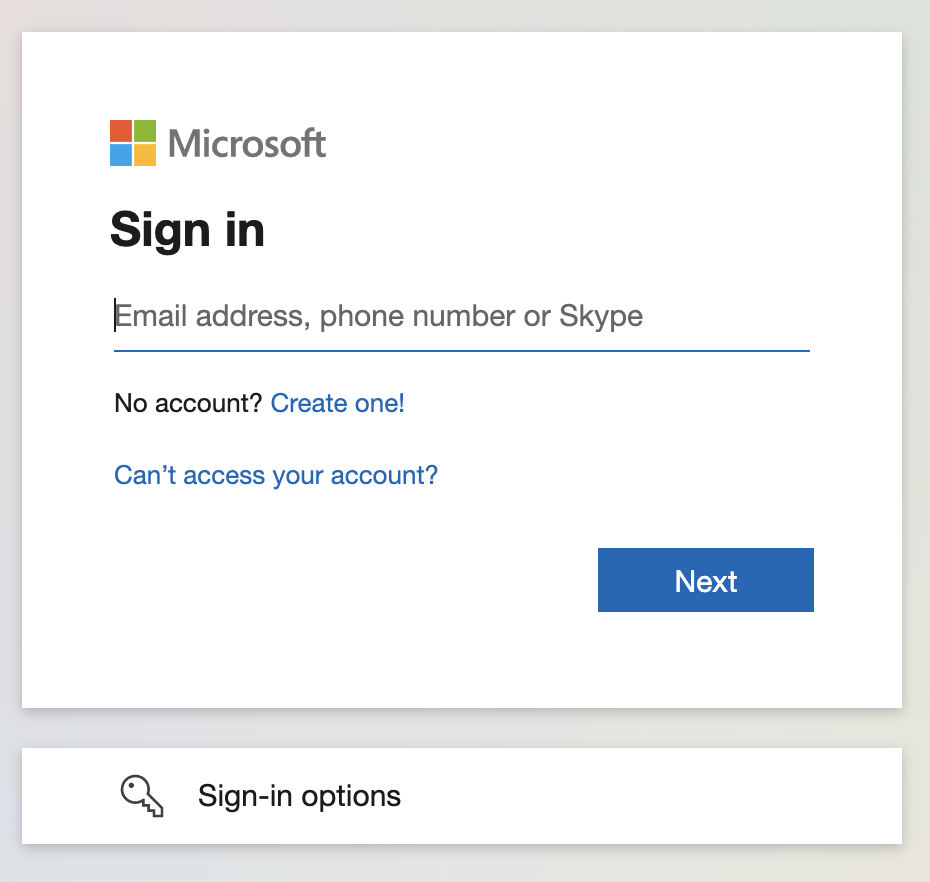
2. If you are already logged in as the Microsoft Azure administrator account, you can skip to step 3. If you are not yet logged in, you will see a dialog box similar to to the following. Sign in as instructed.
3. Once logged in, you will see a Permission Request similar to the following. Click Accept.
4. Once you've clicked accept you should be redirected back to the Carousel login screen. Please note that this does not yet mean that SSO is active for your organisation.
5. To complete SSO setup for your MAT or School, contact our helpdesk at help@carousel-learning.com and request Microsoft SSO activation for your MAT or School. Please only do this after completing steps 1-4 above and ensuring the optional Wonde scopes 'Student Contact details read' and 'Student email addresses read' have been approved in the Wonde portal.
Once SSO is enabled, your MAT/School's users will only be able to log on with SSO, and they will no longer need their old Carousel passwords.
Top Tip: When SSO is activated you can still login to Quizzes and Study Packs assigned to the Carousel Demo class using the Demo student's first name/last name.
Please contact help@carousel-learning.com if you need any further advice with setting up Single Sign-On.
Comments
0 comments
Please sign in to leave a comment.